
Bot-guided pairing
Send /add_server in Telegram. The bot generates a one-time pairing code and a ready-to-run install command; paste that command into the server terminal.
Online Linux server monitoring
A free Linux server monitoring service with Telegram alerts and optional Chrome or Firefox browser extensions. Connect Linux servers with a local HTTPS agent, track SSL certificate expiry, restart detected services, clean logs, reboot with confirmation, and tune thresholds without sharing SSH passwords.
Send /add_server in Telegram. The bot generates a one-time pairing code and a ready-to-run install command; paste that command into the server terminal.
Use server cards, service buttons, reboot confirmations, log cleanup buttons, and threshold menus without opening a web dashboard.
Restart detected systemd services, vacuum old journal logs, run logrotate safely, and see recent service status from the same chat.
Online Linux server monitoring
Online Server Monitor is built for server owners who want useful Linux status in Telegram, Chrome or Firefox instead of a heavyweight dashboard. It focuses on practical signals and safe actions: alerts, status cards, service checks, log cleanup and confirmed reboot requests.
Receive alerts when CPU, RAM, disk, load average or SSL certificate lifetime crosses your chosen threshold, then get a resolved message when the signal returns to a safe range.
The local agent reports the metrics operators check first during incidents, including uptime, OS info, SSL certificate expiry and detected systemd service states.
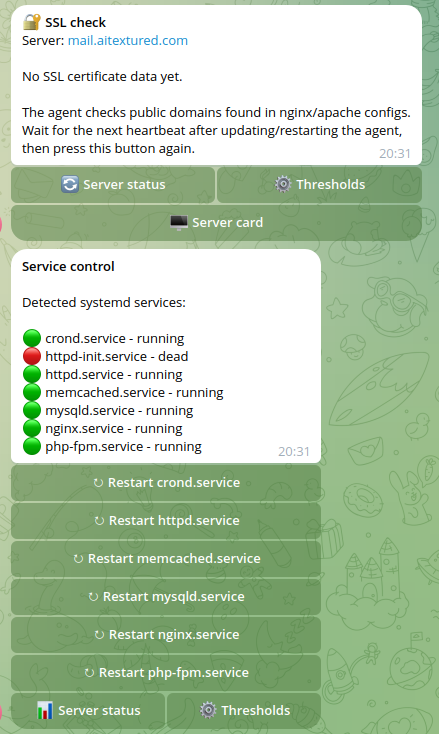
Detected services can be exposed as Telegram buttons, so first-response actions stay consistent and do not require typing commands from memory.
The backend does not open inbound SSH sessions. The local agent connects over HTTPS and accepts only signed, allowlisted maintenance actions.
Use a private chat for one server or a team group for shared operations. The same bot can show status, actions and thresholds where the team already talks.
It fits VPS owners, agencies, freelancers, small hosting teams and site owners who want fast server visibility without a full observability stack.
Documentation
Use the documentation pages for deeper implementation details and internal linking.
Telegram, Chrome and Firefox
Use the same lightweight Linux agent to receive server status, CPU, RAM, disk, load, SSL and systemd alerts in Telegram or directly in your browser.
Keep the existing Telegram workflow for alerts, commands, service buttons, thresholds and confirmed maintenance actions.
Install the developer build, connect with the same PAIRING_TOKEN, and check server cards without opening Telegram.
Firefox can poll the same backend alerts API and show browser notifications while the browser is running.
Install reference
Send /add_server in Telegram. The bot will show an install command with a one-time pairing code. Paste that command into the target server terminal.
curl -fsSL https://server.howprog.one/agent/install.sh -o install.sh
sudo bash install.sh --api https://server.howprog.one --pair PAIRING_TOKEN
Free Telegram integration
Online Server Monitor keeps the operational workflow close to you: Telegram alerts, browser server cards, service restarts, log cleanup, reboot confirmation and threshold tuning.
Get notified when server metrics cross configured thresholds and when the alert is resolved.
Add the bot to a team chat, pair a server from that chat, and keep maintenance notifications visible to everyone there.
Adjust CPU, RAM, disk, load and SSL expiry limits with Telegram buttons instead of opening a settings panel.
Restart detected services, clean logs, and request a confirmed reboot from the same alert thread.
Positioning
Dashboard-first uptime tools focus on external website checks. This service focuses on what a server owner needs in a lightweight interface: live Linux metrics, service state, and safe actions.
Product screenshots
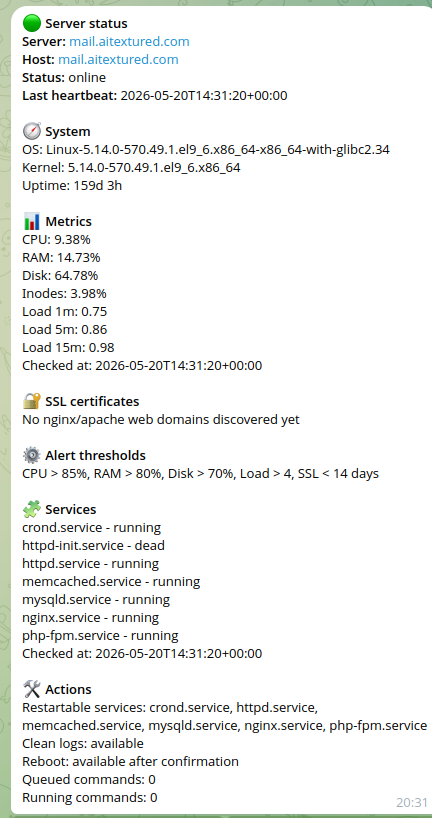
These screenshots show the main user flow: requesting a one-time pairing code from the bot, installing the Linux agent, receiving the first server report, and using Telegram buttons for monitoring and maintenance.
Monitoring flow
The service is designed so Telegram never needs SSH passwords and the backend never opens an SSH session to the monitored server.
The bot creates a one-time pairing code and returns the exact install command for the target server.
The agent registers over HTTPS, stores its secret in a local config file, and starts as a systemd service.
Every report includes heartbeat, CPU, RAM, disk, load, uptime, OS info, SSL certificate expiry and detected service states.
Service restarts, log cleanup and reboot requests are signed, short-lived, and limited to supported actions.
Setup guide
Follow these steps for every Linux server you want to monitor.
Open @live_server_monitor_bot in Telegram and send /start. The bot will show the available commands.
Send /add_server. The bot generates a one-time pairing code, adds it to the install command, and shows the command you need to paste into the server terminal.
Run the command from Telegram as root or with sudo. The agent registers itself, stores its secret locally in /etc/hp-server-agent/config.json, and starts as a systemd service.
curl -fsSL https://server.howprog.one/agent/install.sh -o install.sh
sudo bash install.sh --api https://server.howprog.one --pair PAIRING_TOKENAfter installation, the bot sends a success message. When the first metrics and service scan arrive, it sends CPU, RAM, disk, load, uptime, SSL certificate status, detected services, available actions, and current alert thresholds.
Use /servers to see connected servers. Open a server card to view details, services, thresholds, clean old logs, or request a reboot with confirmation.
/start - open the full guide/add_server - get server install command/servers - show connected servers/status - show full server status/server_status - show full server status/thresholds - explain alert thresholds/help - show command listSafety model
The bot never asks for SSH or root passwords. The backend does not connect to your server over SSH. The installed agent calls the backend over HTTPS and accepts only signed, short-lived, allowlisted commands.
Troubleshooting
Use these commands only on the server where the agent is installed.
systemctl status hp-server-agentjournalctl -u hp-server-agent -n 100 --no-pagerFAQ
Send /add_server in Telegram to get a one-time pairing code and an install command. After you paste the command into the server terminal, the local agent registers over HTTPS and sends monitoring data to this service.
No. Online Server Monitor does not ask for SSH passwords. The backend does not connect over SSH; the local agent polls signed commands over HTTPS.
Thresholds are metric limits such as CPU above 90%, RAM above 85%, disk above 80%, load above a selected value, or SSL certificate expiry below 14 days. When a value crosses the limit, the bot sends an alert and later sends a resolved message.
Start monitoring
Open the bot, request an install command, paste it into the server terminal, and receive the first server report in about a minute.